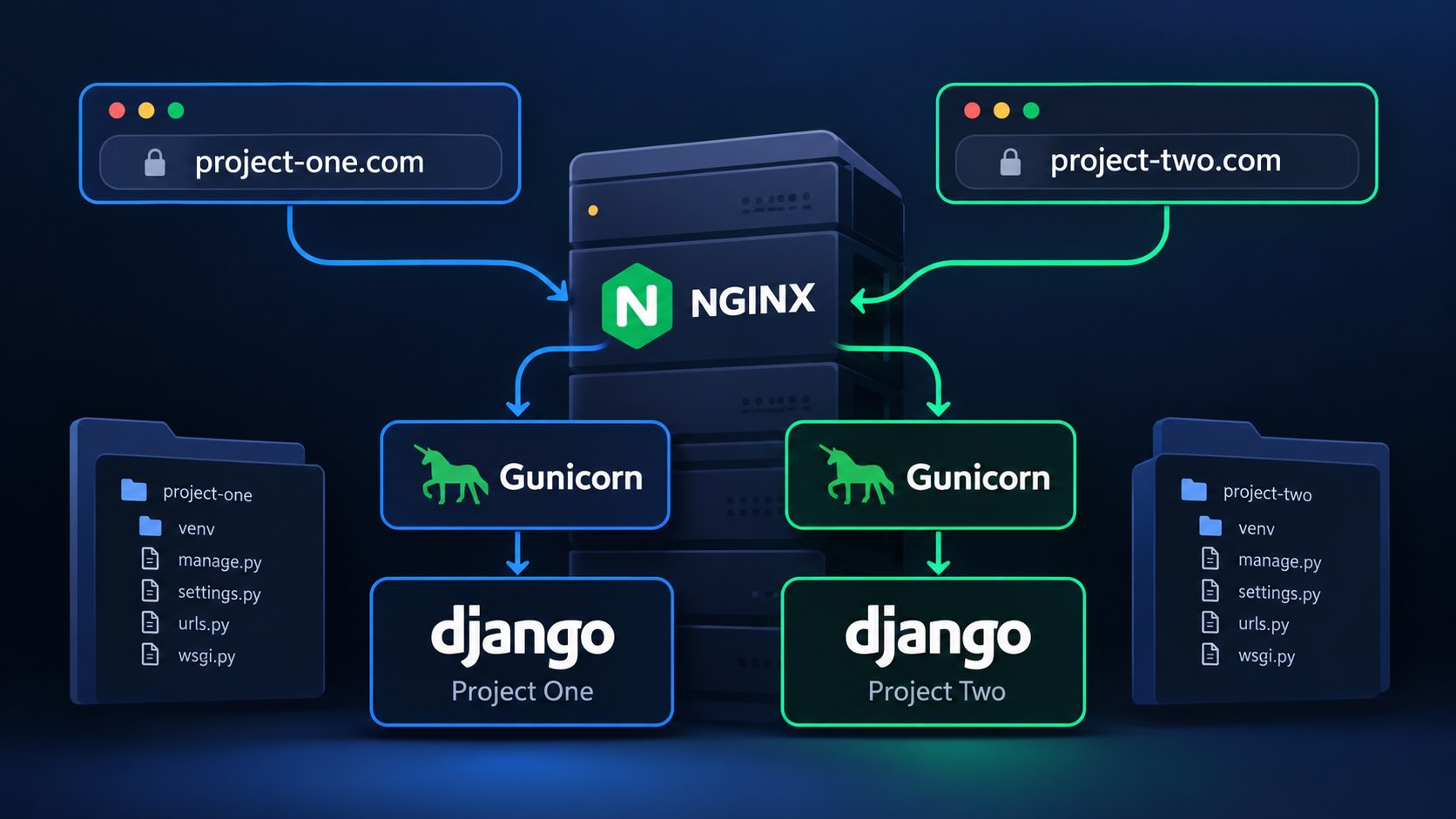
Most Django deployment tutorials show you how to deploy one Django project on one server.
That's fine when you're getting started, but I don't really want to pay for a separate server every time I launch a small project.
If you have a few Django projects that don't get a huge amount of traffic, there's nothing wrong with running several of them on the same server.
That's what I'm going to show you in this article.
We'll use one Ubuntu server and run multiple Django projects on it using Gunicorn, Supervisor and Nginx.
Each project will have its own virtual environment and Gunicorn process. Supervisor will make sure the processes keep running, and Nginx will figure out which Django project should receive the request based on the domain.
The setup will look something like this:
project-one.com
        |
        v
      Nginx
        |
        v
127.0.0.1:8001
        |
        v
    Gunicorn
        |
        v
 Django project 1


project-two.com
        |
        v
      Nginx
        |
        v
127.0.0.1:8002
        |
        v
    Gunicorn
        |
        v
 Django project 2
Once you understand this setup, adding a third or fourth Django project is basically just repeating the same process.
Creating the server
For this tutorial I'm going to use UpCloud.
If you sign up using my affiliate link, you can get $250 in free credits that you can use to test the setup and run your projects.
Disclosure: The link above is an affiliate link, which means I may receive a commission if you become an UpCloud customer through it.
Create a new cloud server and install Ubuntu. I'm using Ubuntu 24.04 LTS here, but the setup isn't particularly dependent on that exact version.
How large the server needs to be depends entirely on the projects you're running.
If these are a few small websites, side projects or SaaS applications that aren't receiving enormous amounts of traffic, you can start fairly small and upgrade later.
One thing I would watch is memory.
Running multiple Django applications also means running multiple Gunicorn workers, and those workers all need RAM. Don't create a tiny server and then blindly start 20 Gunicorn workers because some formula on the internet told you to.
Once the server has been created, find its IP address and connect to it using SSH:
ssh root@YOUR_SERVER_IPUpdate the server
The first thing I normally do on a new server is update everything:
apt update
apt upgrade -y
Then install the software we're going to need:
apt install -y nginx supervisor git python3-pip python3-venv python3-dev build-essentialIf you're using PostgreSQL and need to compile a PostgreSQL Python package, you might also need:
apt install -y libpq-devI'm not going to go through setting up PostgreSQL in this article because I want to focus on running multiple Django projects.
You can use a PostgreSQL database on this server, UpCloud's managed database service, or a database hosted somewhere else.
Create a user for our projects
I don't want my Django applications running as root.
So let's create a separate user called deploy:
adduser deployYou can also give the user sudo access:
usermod -aG sudo deployNow create a directory where we're going to store the projects:
mkdir -p /var/www
chown deploy:deploy /var/www
Then switch to the deploy user:
su - deployDeploying the first Django project
Let's say our first project is called project-one.
Clone the repository into /var/www:
cd /var/www
git clone https://github.com/yourusername/project-one.git
cd project-one
Create a virtual environment:
python3 -m venv venvActivate it:
source venv/bin/activateThen install the project's dependencies:
pip install --upgrade pip
pip install -r requirements.txt
Make sure Gunicorn is included in your requirements. If it isn't, install it:
pip install gunicornAnd remember to add it to whatever you use for managing dependencies.
Preparing Django for production
There are a few Django settings you should check before starting the application.
First, don't run production with debug mode enabled:
DEBUG = FalseAdd the domains you're going to use:
ALLOWED_HOSTS = [
    "project-one.com",
    "www.project-one.com",
]
You should also have somewhere for Django to collect your static files:
STATIC_URL = "/static/"
STATIC_ROOT = BASE_DIR / "staticfiles"
If your project handles uploaded files, you might have something like:
MEDIA_URL = "/media/"
MEDIA_ROOT = BASE_DIR / "media"
Your exact settings will obviously depend on the project.
You should also make sure your secret key, database password, API keys and other secrets aren't hardcoded into the Git repository.
I normally keep these in environment variables or a local environment file that isn't committed to Git.
Run the migrations
Now we can run the normal Django deployment commands:
python manage.py migrate
python manage.py collectstatic --noinput
At this point it's also a good idea to run Django's deployment checks:
python manage.py check --deployThis won't magically make the application secure, but Django can catch quite a few settings that are easy to forget.
Testing Gunicorn
Before adding Supervisor or Nginx, I like to check that Gunicorn can actually start the project.
Let's make the first Django project listen on port 8001:
/var/www/project-one/venv/bin/gunicorn --bind 127.0.0.1:8001 config.wsgi:applicationYou'll need to replace config.wsgi with the location of the WSGI file in your project.
If your project looks like this:
project-one/
    manage.py
    myproject/
        __init__.py
        settings.py
        urls.py
        wsgi.py
Then the command would be:
/var/www/project-one/venv/bin/gunicorn --bind 127.0.0.1:8001 myproject.wsgi:applicationIf Gunicorn starts without errors, that's a good sign.
You can stop it again using Ctrl+C.
Why bind Gunicorn to localhost?
You might notice that I'm using:
127.0.0.1:8001Instead of:
0.0.0.0:8001That's intentional.
I don't want people on the internet connecting directly to Gunicorn.
Only Nginx needs to communicate with Gunicorn, and both are running on the same server.
So Gunicorn only needs to listen for connections coming from the server itself.
Keeping Gunicorn running with Supervisor
Starting Gunicorn manually works for testing, but it isn't very useful in production.
If I close my SSH connection, I don't want the website to disappear.
I also want Gunicorn to restart if the process crashes or if the server reboots.
This is where Supervisor comes in.
Create a new Supervisor configuration:
sudo nano /etc/supervisor/conf.d/project-one.confAdd this:
[program:project-one]
directory=/var/www/project-one
command=/var/www/project-one/venv/bin/gunicorn --workers 2 --bind 127.0.0.1:8001 myproject.wsgi:application
user=deploy
autostart=true
autorestart=true
redirect_stderr=true
stdout_logfile=/var/log/supervisor/project-one.log
stopasgroup=true
killasgroup=true
environment=PYTHONUNBUFFERED="1"
Again, replace myproject.wsgi:application with the correct module for your project.
I'm using two Gunicorn workers here.
There isn't a magic worker count that works for every Django project. More workers can let you process more requests at the same time, but they also use more memory.
That's particularly important when several Django projects share one server.
Tell Supervisor to load the new configuration:
sudo supervisorctl reread
sudo supervisorctl update
Then check the status:
sudo supervisorctl statusYou should see something similar to:
project-one RUNNINGIf it isn't running, check the log:
sudo tail -f /var/log/supervisor/project-one.logAdding Nginx
Gunicorn is now running our Django project on port 8001.
Next we need Nginx to accept requests for project-one.com and forward them to Gunicorn.
Create a new Nginx configuration:
sudo nano /etc/nginx/sites-available/project-oneAdd:
server {
    listen 80;
    listen [::]:80;

    server_name project-one.com www.project-one.com;

    client_max_body_size 20M;

    location /static/ {
        alias /var/www/project-one/staticfiles/;
    }

    location /media/ {
        alias /var/www/project-one/media/;
    }

    location / {
        proxy_set_header Host $host;
        proxy_set_header X-Real-IP $remote_addr;
        proxy_set_header X-Forwarded-For $proxy_add_x_forwarded_for;
        proxy_set_header X-Forwarded-Proto $scheme;

        proxy_pass http://127.0.0.1:8001;
    }
}
There are a couple of things happening here.
Nginx serves the static and media files directly. Requests for the actual Django application are forwarded to Gunicorn on port 8001.
This means Gunicorn doesn't need to worry about serving CSS files, JavaScript, images and other static assets.
Enable the site:
sudo ln -s /etc/nginx/sites-available/project-one /etc/nginx/sites-enabled/project-oneIf this is a new server, you can also remove the default Nginx website:
sudo rm -f /etc/nginx/sites-enabled/defaultBefore restarting Nginx, always test the configuration:
sudo nginx -tIf everything is okay:
sudo systemctl reload nginxPoint the domain to the server
Now go to wherever you manage your DNS.
Create an A record for the domain and point it to the public IP address of your UpCloud server.
For example:
project-one.com       A       YOUR_SERVER_IP
www.project-one.com   A       YOUR_SERVER_IP
Once the DNS has propagated, opening project-one.com should send the request to Nginx.
Nginx sees the domain, matches the server_name, and forwards the request to port 8001.
That's the first Django project running.
Now let's add a second Django project
This is the part that's usually missing from tutorials.
We already have one Django project on the server.
Now I want project-two.com to run a completely different Django application on the exact same server.
We don't need another Nginx installation.
We don't need another Supervisor installation.
And we definitely don't need another server.
We just need another Gunicorn process.
Set up project two
Clone it like we did with the first project:
cd /var/www
git clone https://github.com/yourusername/project-two.git
cd project-two
Create its own virtual environment:
python3 -m venv venv
source venv/bin/activate
Install the requirements:
pip install --upgrade pip
pip install -r requirements.txt
Then run migrations and collect the static files:
python manage.py migrate
python manage.py collectstatic --noinput
Everything about this project is independent from project one.
It can use a different Django version, different Python packages and a completely different database.
That's one of the reasons I give every project its own virtual environment instead of installing all the Python packages globally.
Give project two a different port
The first project uses port 8001.
So let's use port 8002 for this one.
Test it first:
/var/www/project-two/venv/bin/gunicorn --bind 127.0.0.1:8002 anotherproject.wsgi:applicationIf that works, stop it again and create another Supervisor configuration:
sudo nano /etc/supervisor/conf.d/project-two.confAdd:
[program:project-two]
directory=/var/www/project-two
command=/var/www/project-two/venv/bin/gunicorn --workers 2 --bind 127.0.0.1:8002 anotherproject.wsgi:application
user=deploy
autostart=true
autorestart=true
redirect_stderr=true
stdout_logfile=/var/log/supervisor/project-two.log
stopasgroup=true
killasgroup=true
environment=PYTHONUNBUFFERED="1"
Reload Supervisor:
sudo supervisorctl reread
sudo supervisorctl update
And check the status:
sudo supervisorctl statusYou should now see both projects:
project-one    RUNNING
project-two    RUNNING
This is the important part.
We now have two completely separate Django applications running on the same server at the same time.
One is available internally on port 8001 and the other on port 8002.
Add the second project to Nginx
Create another Nginx configuration:
sudo nano /etc/nginx/sites-available/project-twoAdd:
server {
    listen 80;
    listen [::]:80;

    server_name project-two.com www.project-two.com;

    client_max_body_size 20M;

    location /static/ {
        alias /var/www/project-two/staticfiles/;
    }

    location /media/ {
        alias /var/www/project-two/media/;
    }

    location / {
        proxy_set_header Host $host;
        proxy_set_header X-Real-IP $remote_addr;
        proxy_set_header X-Forwarded-For $proxy_add_x_forwarded_for;
        proxy_set_header X-Forwarded-Proto $scheme;

        proxy_pass http://127.0.0.1:8002;
    }
}
Enable it:
sudo ln -s /etc/nginx/sites-available/project-two /etc/nginx/sites-enabled/project-twoTest everything again:
sudo nginx -tAnd reload Nginx:
sudo systemctl reload nginxPoint the second domain to the same server IP:
project-two.com       A       YOUR_SERVER_IP
www.project-two.com   A       YOUR_SERVER_IP
Both domains now point to exactly the same server.
Nginx is what separates them.
If the request is for project-one.com, Nginx sends it to port 8001.
If the request is for project-two.com, Nginx sends it to port 8002.
That's really the whole trick behind hosting multiple Django projects on one server.
Adding HTTPS
I wouldn't run either project without HTTPS.
Luckily, setting up free SSL certificates with Let's Encrypt is simple.
Install Certbot and the Nginx plugin:
sudo apt install -y certbot python3-certbot-nginxThen create a certificate for the first project:
sudo certbot --nginx -d project-one.com -d www.project-one.comAnd another one for the second project:
sudo certbot --nginx -d project-two.com -d www.project-two.comCertbot will update the Nginx configuration for you.
You can check that automatic renewal works with:
sudo certbot renew --dry-runA small Django setting that's easy to forget
Once Nginx terminates HTTPS and sends the request to Gunicorn, Django needs to understand that the original request was secure.
I normally add this to my production settings:
SECURE_PROXY_SSL_HEADER = ("HTTP_X_FORWARDED_PROTO", "https")This works together with this line in our Nginx configuration:
proxy_set_header X-Forwarded-Proto $scheme;Without the correct proxy configuration, you can sometimes run into strange behaviour with secure cookies, redirects and HTTPS detection.
Setting up the firewall
I also like to enable UFW on servers like this.
First make sure SSH is allowed. Otherwise it's surprisingly easy to lock yourself out of your own server.
sudo ufw allow OpenSSHThen allow Nginx:
sudo ufw allow 'Nginx Full'And enable the firewall:
sudo ufw enableCheck it:
sudo ufw statusNotice that we don't open ports 8001 and 8002.
They don't need to be accessible from the internet because Gunicorn is listening only on 127.0.0.1.
Deploying updates
Once everything is configured, deploying a new version is fairly simple.
For project one, I could do something like:
cd /var/www/project-one
git pull

source venv/bin/activate
pip install -r requirements.txt

python manage.py migrate
python manage.py collectstatic --noinput

sudo supervisorctl restart project-one
And project two works exactly the same way:
cd /var/www/project-two
git pull

source venv/bin/activate
pip install -r requirements.txt

python manage.py migrate
python manage.py collectstatic --noinput

sudo supervisorctl restart project-two
Restarting one application doesn't restart the other one.
This is another thing I like about the setup.
Even though the applications share the same physical server, they still operate independently for most day-to-day deployment tasks.
Useful Supervisor commands
There are a few Supervisor commands I use all the time.
Check everything:
sudo supervisorctl statusRestart one project:
sudo supervisorctl restart project-oneStop it:
sudo supervisorctl stop project-oneStart it again:
sudo supervisorctl start project-oneAnd if you've created or changed a Supervisor configuration:
sudo supervisorctl reread
sudo supervisorctl update
Useful Nginx commands
Whenever I change an Nginx configuration, I run this first:
sudo nginx -tDon't skip this.
A missing semicolon can ruin your day much more effectively than you might expect.
If the configuration is valid, reload Nginx:
sudo systemctl reload nginxYou normally don't need to fully restart Nginx when you're just changing a site configuration.
What about a third Django project?
Nothing really changes.
Clone the new project:
/var/www/project-threeCreate another virtual environment.
Run another Gunicorn process on:
127.0.0.1:8003Create:
/etc/supervisor/conf.d/project-three.confAnd:
/etc/nginx/sites-available/project-threeThen point the third domain to the same IP address.
You can continue doing this as long as the server has enough CPU and memory to handle all the applications.
When should you stop putting everything on one server?
There is obviously a point where this setup stops making sense.
If you have five tiny projects that receive a handful of requests every minute, having five separate servers would probably be a waste of money and time.
But if one of those projects becomes important and starts receiving serious traffic, I would consider moving it onto its own infrastructure.
There is another downside as well.
All of these projects are now sharing one server.
If that server goes down, every project goes down with it.
If one application consumes all the available memory, it can also affect the others.
So this isn't some magical architecture that you should use for everything.
It's just a very practical setup for smaller projects.
And for the type of projects I tend to build, practical is often much more useful than prematurely building a complicated infrastructure that I don't actually need.
The final setup
After everything we've done, the server might look something like this:
/var/www/
    project-one/
        venv/
        manage.py
        ...

    project-two/
        venv/
        manage.py
        ...


/etc/supervisor/conf.d/
    project-one.conf
    project-two.conf


/etc/nginx/sites-available/
    project-one
    project-two
And the requests work like this:
project-one.com
    -> Nginx
    -> 127.0.0.1:8001
    -> Gunicorn
    -> Django project one


project-two.com
    -> Nginx
    -> 127.0.0.1:8002
    -> Gunicorn
    -> Django project two
Supervisor makes sure both Gunicorn processes stay alive.
Nginx handles the public web traffic, SSL and static files.
And every Django project gets its own Python environment and process.
Summary
You don't need a separate server for every Django project you deploy.
For smaller applications, I think running multiple projects on the same server is a really useful setup to understand.
The important part is keeping the projects separated.
Each Django project gets its own directory.
Each project gets its own virtual environment.
Each project gets its own Gunicorn process and port.
Supervisor keeps those processes running.
And Nginx looks at the requested domain and sends the request to the correct application.
Once you've deployed the first two projects, adding another one is mostly just repeating what you've already done.
If you want to try this setup yourself, you can create an UpCloud account using my link and get $250 in free credits.
That's more than enough to experiment with Django deployments without having to commit much money while you're figuring everything out.